
 TNN
TNN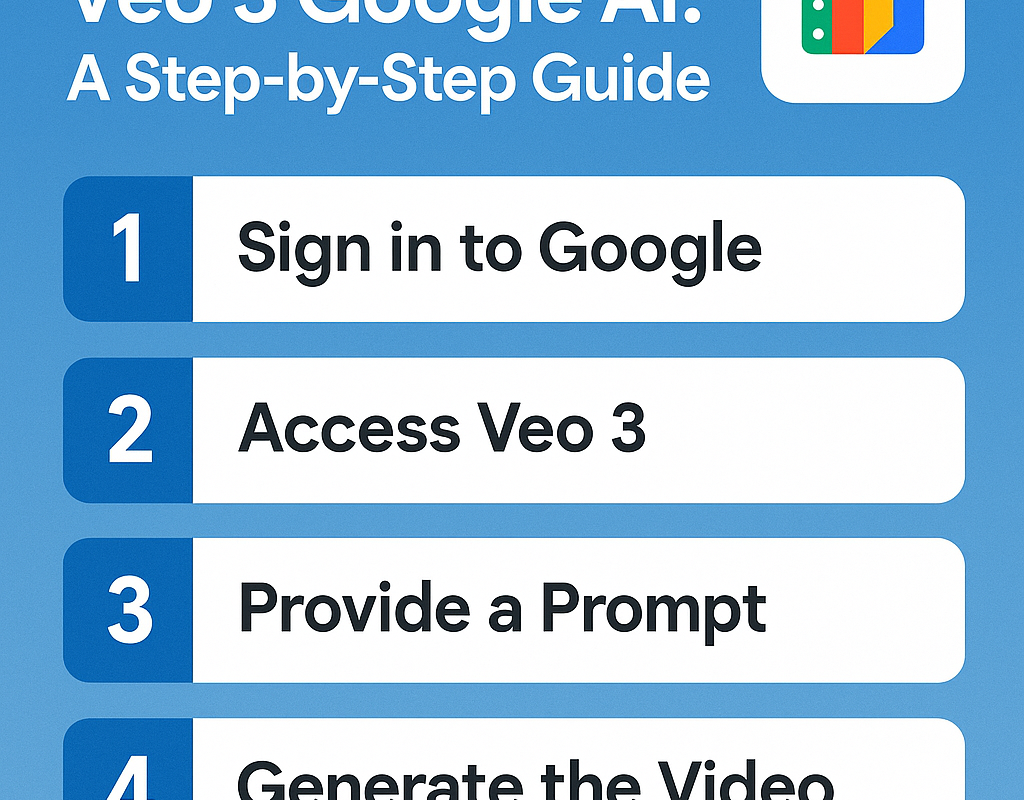
Google’s latest innovation in video generation, Veo 3, is making waves across the creative and tech industries. This advanced AI tool can generate high-quality, cinematic videos from simple text prompts, revolutionizing the way content is produced. The best part? You can try Veo 3 for free — if you know how. In this guide, we’ll walk you through everything you need to know about accessing and using free Veo 3 Google AI.
What Is Veo 3 by Google?
Veo 3 is Google DeepMind’s state-of-the-art video generation model. Similar to OpenAI’s Sora, it allows users to create high-definition videos just by entering descriptive prompts. Veo can understand complex scenes, cinematic camera movements, and apply various styles, from realistic to animated.
Can You Use Google Veo 3 for Free?
Yes — but with some limitations. As of now, Veo 3 is not fully open to the public, but Google has provided limited access through the VideoFX platform (https://aitestkitchen.withgoogle.com/tools/videofx), part of their AI Test Kitchen.
Requirements for Free Access:
- A Google account
- Registration via the waitlist on VideoFX
- Acceptance into the beta testing program
Step-by-Step: How to Use Free Veo 3 Google AI
1. Sign In with Your Google Account
Go to Google VideoFX. Click “Sign In” in the top-right corner and log in with your Google credentials.
2. Join the Waitlist
If you’re not already approved, click “Join Waitlist.” Fill out a brief form and submit your interest in testing Veo. Access is rolling out gradually, so be patient.
3. Get Access Notification
Once approved, you’ll receive an email from Google inviting you to use the VideoFX platform. Click the link in the email to begin.
4. Enter Your Prompt
Inside VideoFX:
- Click “Create New”
- Type a descriptive prompt like: “A sunset over a futuristic city with flying cars, cinematic lighting, and smooth camera pan”
- Select video style and length (if options are available)
5. Generate and Download Video
Veo 3 will take a few moments to process your request and generate a video. You can:
- Preview the output
- Download it in MP4 format
- Refine your prompt and regenerate for better results
Best Practices for Prompt Writing
To get the most out of Veo 3:
- Be specific: Describe setting, action, style, and mood.
- Use cinematic language: Words like “wide-angle,” “tracking shot,” or “slow motion” can influence the outcome.
- Mention time and atmosphere: e.g., “foggy night in Tokyo” or “bright morning in a meadow.”
Use Cases for Veo 3
- YouTube content and intros
- TikTok or Instagram Reels
- Concept trailers
- Educational animations
- Music videos and lyric visuals
Limitations to Know
- Limited access (invite-only for now)
- Video length is typically short (under 1 minute)
- May occasionally misinterpret complex prompts
- Commercial use restrictions may apply (check terms)
Final Thoughts
Google Veo 3 is pushing the boundaries of what AI-generated video can achieve. While it’s still in beta, the ability to use it for free through the VideoFX tool gives early adopters a chance to explore this powerful technology. Whether you’re a filmmaker, marketer, or just curious, now’s the time to get on the waitlist and start experimenting.